

The Case For Connecting Your Bank
Bank sync seems like the obvious choice for effortless expense tracking. Connect your account once, and every card transaction appears automatically. No photos, no typing, nothing to remember.
If you put everything on one card and never use cash, this works reasonably well. But for most people — especially anyone who travels, uses cash occasionally, or splits bills — it misses quite a bit.
What Bank Sync Actually Misses
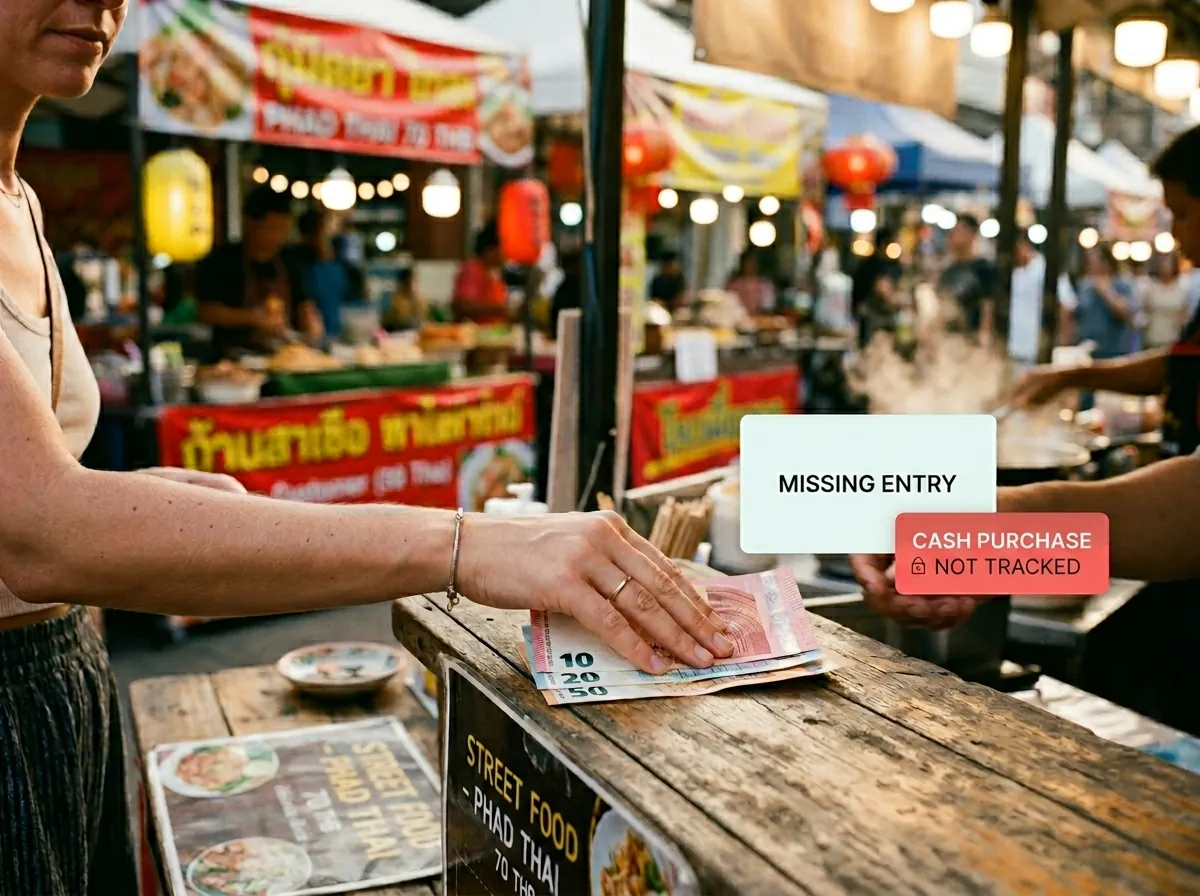
Cash purchases. This one's obvious but significant. If you paid with cash, it didn't go through your bank. Markets, street food, tipping, informal payments — none of it appears.
Useful context. Bank transactions often look like this: "AMZN MKTP US2X4JK8" or "POS DEBIT 00127 TXN REF 44821"*. You usually know what the purchase was, but the description makes automated categorization unreliable.
Split bills. If four people had dinner and one person paid the €120 tab by card, their bank statement shows €120 even if they were only paying €30 of it. The other three show nothing.
Speed. Many transactions take 1–3 days to appear as settled, and some pending charges categorize incorrectly. Real-time tracking it isn't.
Cross-border complexity. Foreign transactions can appear in the wrong currency, fail to categorize correctly, or show up with merchant names that are the local-language abbreviation of something you'd never recognize.
How Receipt Scanning Fills Those Gaps
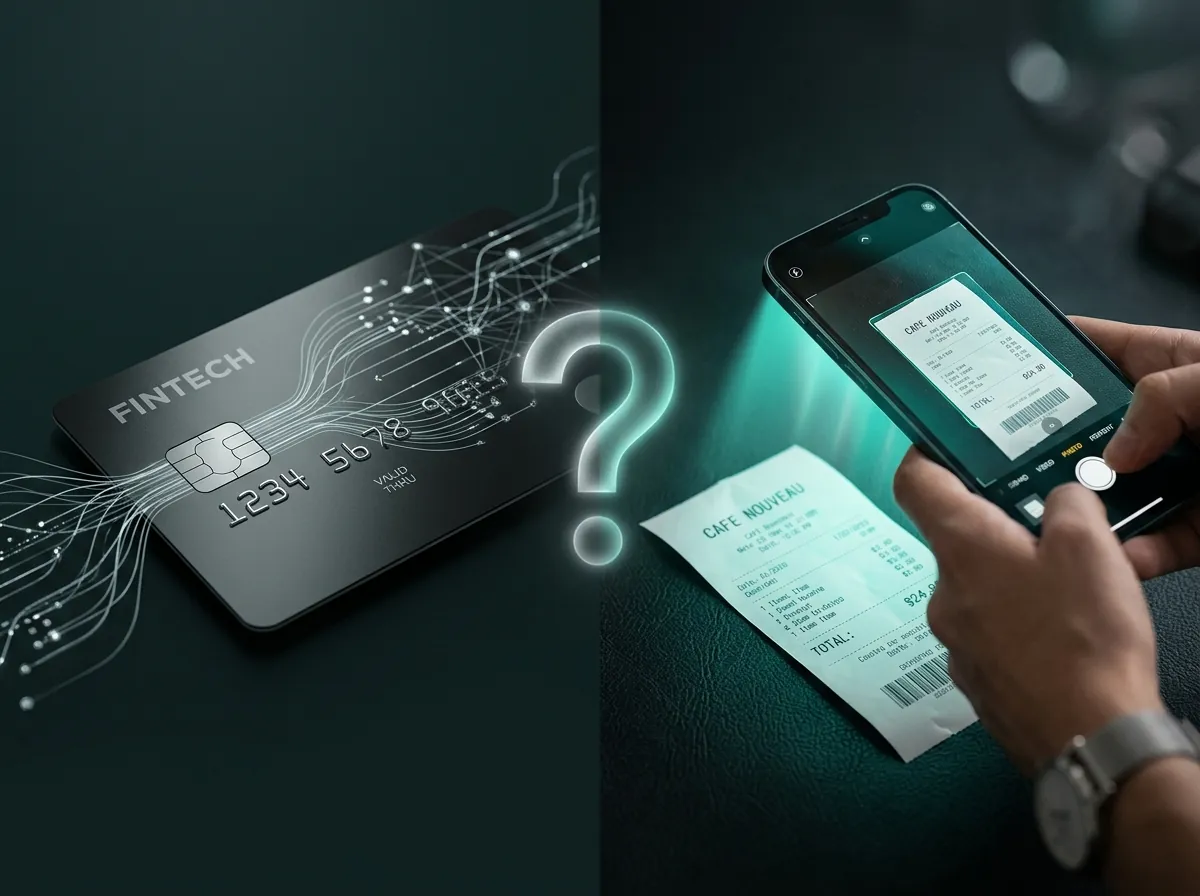
When you photograph a receipt, the app reads the actual data from the paper: the merchant name as it appears on the receipt, the exact amount, the date, and in many cases the individual line items.
The process looks like this:
1. You pay and receive a receipt
2. You open your expense app and tap the camera button
3. You point your phone at the receipt
4. The AI reads the merchant, total, date, and currency
5. It suggests a category based on the merchant type
6. You review (or just confirm) and save
Total time: five to eight seconds. The resulting entry has clean, readable data — not a cryptic reference number.
The Combination That Works Best
Receipt scanning and bank sync aren't mutually exclusive, but for most personal use cases, receipt scanning alone gives you a more accurate and complete picture:
| Receipt Scanning | Bank Sync | |
|---|---|---|
| Cash purchases | ✅ Yes | ❌ No |
| Real-time | ✅ Immediate | ⚠️ 1–3 day delay |
| Accurate merchant name | ✅ From the receipt | ⚠️ Often abbreviated |
| Split bills | ✅ Scan your portion | ❌ Shows full amount |
| Multiple currencies | ✅ Reads from receipt | ⚠️ Conversion can be off |
| Privacy (no bank access) | ✅ Not required | ❌ Bank credentials needed |
But if you want an accurate picture of what you actually spent — including cash, including travel, including split dinners — scanning receipts when you get them is the more complete method.
Tips for Clean Receipt Scans
A few habits that make scanning faster and more accurate:
Scan at the register, not later. Paper receipts get crumpled and faded. Thermal paper in particular can become unreadable within a few days. Scan immediately and you never have to worry about it.
Lay it flat when possible. Most AI scanners handle reasonable angles fine, but a receipt lying flat on a surface will parse more reliably than one held in the air.
Don't worry about perfection. Even if the scanner misreads something, correcting a field takes five seconds. An imperfect automatic scan is still faster than manual entry.
For digital receipts, use quick-text. Order confirmations, app purchases, subscription renewals — these don't come with a photo to scan. Just type a short note: "Spotify 9.99" or "Amazon order 34.50".
TrackCent's receipt scanner handles all of this — multiple currencies, partial receipts, and quick text input for the ones that don't have paper. No bank connection needed. Download it on the App Store.


